Obscura Catalog is a macOS app to organise, describe and find your images, and to keep the catalogue raisonné of a photographic body of work: numbered works, attributions, prints and editions, provenance, exhibitions, publications, exports for museums and portals, PDF reports and certificates of authenticity.
Catalog manages the meaning of images. It references your files where they are, with the SHA-256 fingerprint of each one, but it does not copy or archive them: archives, fixity checks and offsite copies are the job of Obscura Vault, a separate app. The two products are independent.
This guide is organised by task: each chapter answers “how do I…”. Start with the first chapter, then go straight to what you need. To discover the whole app from end to end, follow the walkthrough on the demo data.
Contents
- Install and get started — the licence and free tier, settings and updates, the main window, where Catalog keeps its data, backing up and restoring the library, moving it, keeping several libraries.
- Import a folder — turn a folder into a project, the SHA-256 fingerprint, duplicates, resume an interrupted import, locate a moved folder.
- Browse the library — the grid, the keyboard, the loupe, comparison, the inspector, ratings, flags and labels, versions and relationships.
- Collections, tags and search — manual and smart collections, tags, quick search, advanced search and saved searches.
- EXIF and XMP metadata — what Catalog reads, editing metadata, the XMP sidecar, writing into the file.
- The thesaurus — controlled vocabulary, hierarchy, synonyms, CSV import, CSV and SKOS export.
- Faces and similar photos — on-Mac analysis, naming, merging and splitting people, close photos and likely duplicates, privacy.
- Import a Lightroom catalog — catalog read without being modified, dry run, what is carried over, resume and report.
- The catalogue raisonné: works — work and file, numbering, the record and its tabs (rights, relations, files, documents), the change history, statuses, completeness, creating works from files.
- Attributions, prints and provenance — competing attributions, editions and prints, conservation, the provenance chain and auction sales.
- Agents — the directory of persons and organisations, authority identifiers, duplicates and merging, living persons.
- Exhibitions and publications — exhibition history and bibliography, shared by the whole corpus.
- Batch editing — edit several works, attribute in batch, series values, undo.
- Import a CSV inventory — works, exhibitions and publications: column mapping, dry-run preview, unknown agents, rejection report.
- Export the catalogue — CSV in twelve tables, LIDO 1.1, CIDOC CRM, the full library export, the package for Obscura Vault, and the confidentiality rule.
- Certificates of authenticity — the signing key, issuing, re-issuing, revoking, verifying a PDF.
- Reports — portfolio, catalogue raisonné and inventory as PDF/A.
- Troubleshooting and FAQ — file not found, interrupted import, publishing refused…
- Glossary — the words of this guide.
- Input examples — screen by screen, what to type in each field, and CSV files ready to import.
And from end to end: Walkthrough — a guided tour of every feature on the demo data, with its checklist.
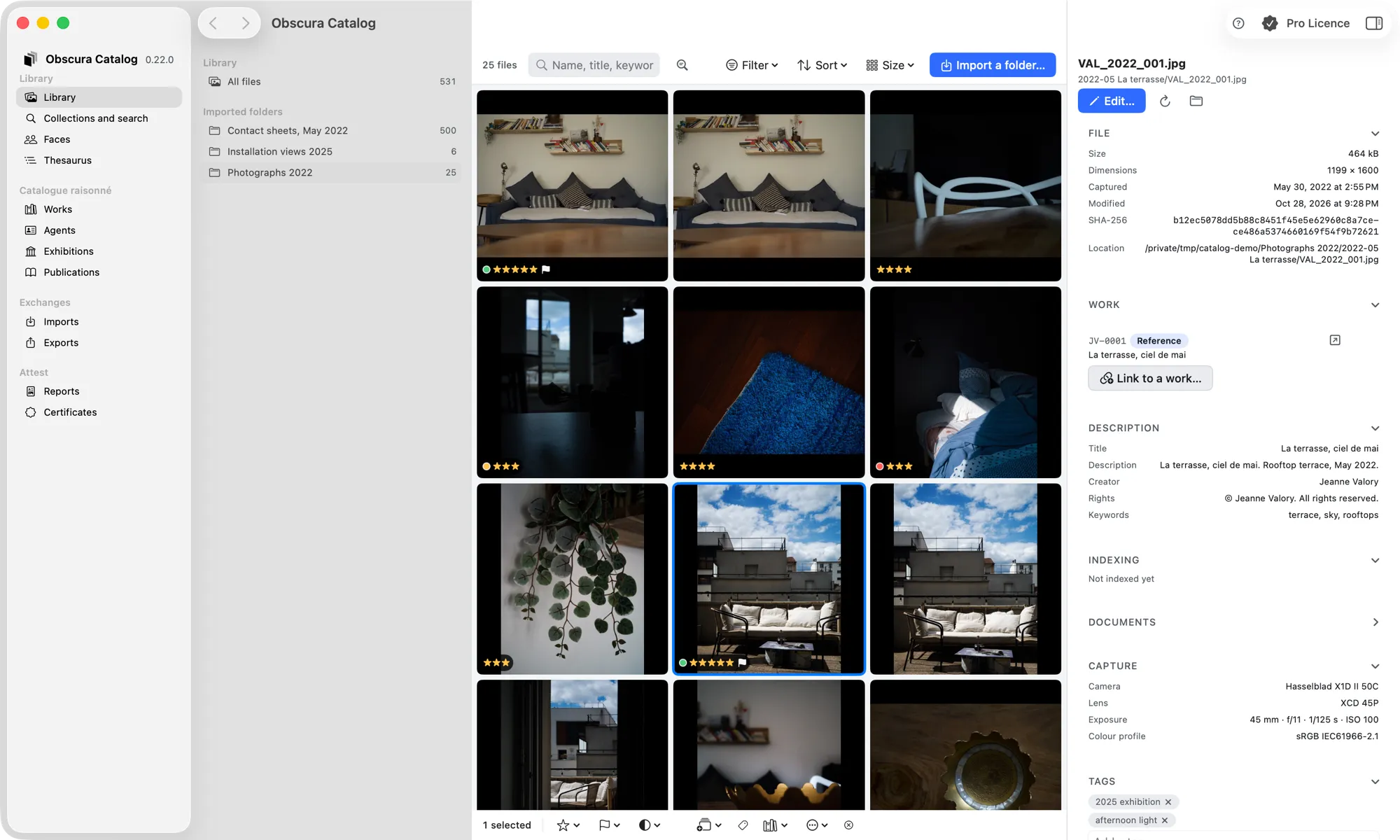
The four groups of the window
The sidebar follows what you are doing:
| Group | Sections | To… |
|---|---|---|
| Library | Library, Collections and search, Faces, Thesaurus | bring images in, describe them and find them |
| Catalogue raisonné | Works, Agents, Exhibitions, Publications | keep the catalogue of works |
| Exchanges | Imports, Exports | exchange with Lightroom, a spreadsheet, a museum |
| Attest | Reports, Certificates | account for the catalogue to others: PDF reports, certificates of authenticity |
Conventions
- Interface labels are written in bold: Import a folder…, New work.
- Keyboard shortcuts use the Mac symbols: ⌘ (Command), ⌥ (Option), ⇧ (Shift), ⌫ (Delete).
- “The library” means the folder where Catalog keeps its database, thumbnails, settings and certificates (see Install and get started).
Obscura Catalog’s screens are in French and English, following your Mac’s language or the one chosen in Settings › General › Language. The labels quoted here are those of the English version; they may change from one version to the next.